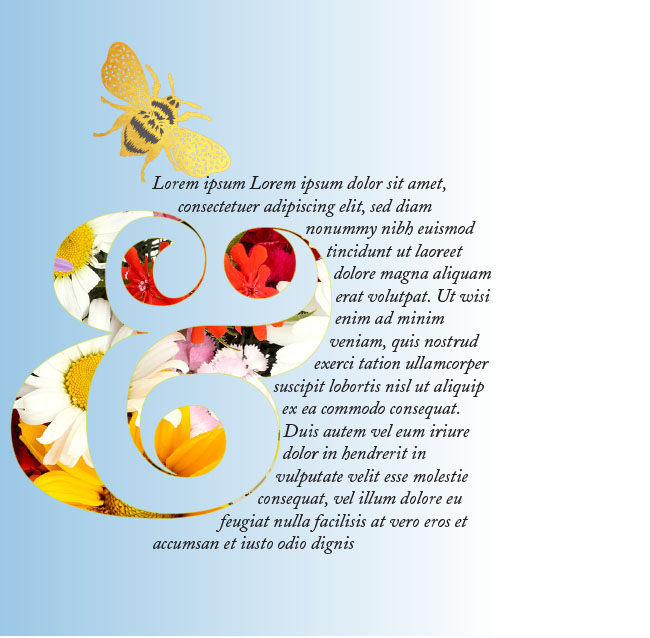
Clipping mask & text wrap in Illustrator

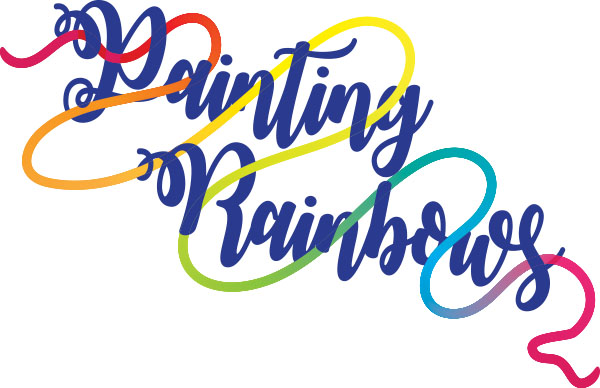
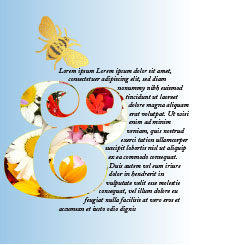
Use a text wrap to create a pretty visual effect as part of a layout. If the page lacks colour, you could also use a clipping mask to display some colourful graphics through the outline of a shape. I’ve used a lovely curvy ampersand to show you how I created the image above.

Download the tutorial to do it yourself:
Create a seamless repeating pattern swatch with Illustrator – the easy way

Today I’ve written a tutorial to show you how to use Illustrator’s Pattern making function. It’s beautifully quick and simple – totally pain-free.

There are links to a tutorial to create a recycling symbol as well as a nifty way to make a quick heart.

Create Faux Postage Stamps with Illustrator

Homer

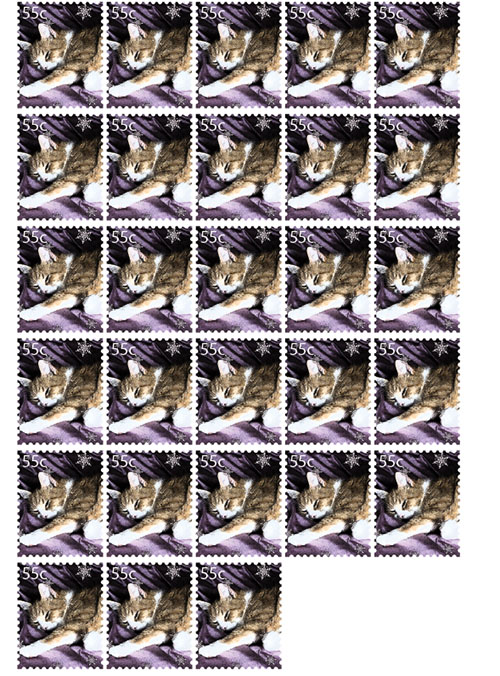
Today’s tutorial shows you how to make faux postage stamps. They can be printed and made into stickers or used as fun elements on holiday letters and notelets. Make a whole sheet of them 🙂

Download the tutorial here:

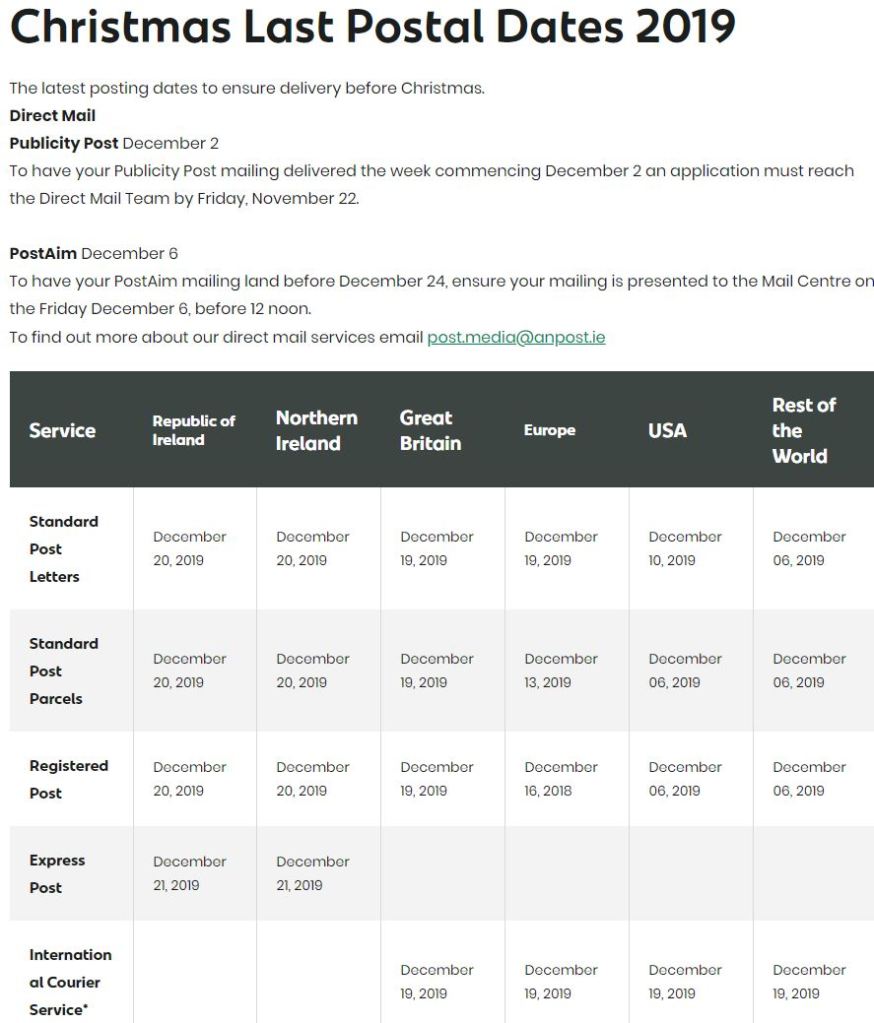
Don’t Miss the Post!

These details are taken from the An Post website (https://www.anpost.com/Post-Parcels/Sending/Christmas-2019/christmas-2018-postal-dates)

Define circle segment angles in Illustrator

Sometimes you need to be able to define the angle of a circle segment. Trouble is, in Illustrator, circles are not true circles; they are ellipses shaped into circles with bezier curves.

I have written a tutorial detailing the two methods I use to define the angle of a circle segment. Download the tutorial here:

A long time ago I wrote up a tutorial to do the same using Inkscape:

It might be out of date, I haven’t checked, but it’s here just in case it’s still useful. 🙂

Create a stroke and fill embossed effect with Illustrator

Bodoni ‘g’

Illustrator, unlike Photoshop, doesn’t have dedicated contouring capabilities. This tutorial shows you how to achieve embossing effects without having to open up PSD and rasterizing your work.

You can apply the effects on shapes, including text, and you’ll be pleased to find that even after ’embossing’ your original graphics remain editable.

To finish off, it also shows you how you can save the effects as a graphic style to use in future projects.

🙂

The tutorial is here:

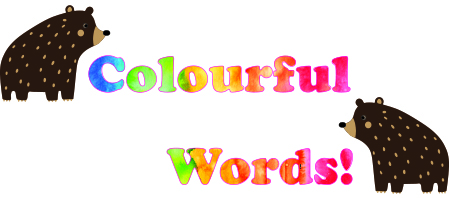
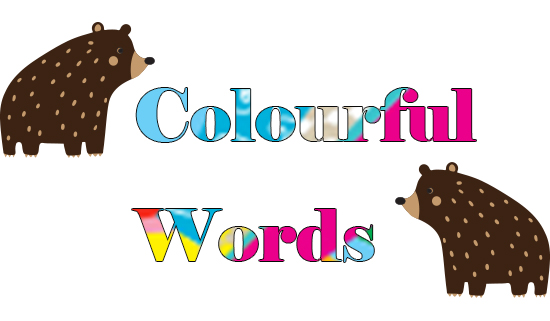
Colourful Words: Illustrator and PSD

Today ‘s tutorials are quick and easy techniques for filling in Illustrator and Photoshop text with background images.

Illustrator

  • Create your text. I’m using Cooper Black.
  • Place, Copy or Import the image you want to fill your text with.
  • Embed imported or placed graphics.
  • Send the image to the back of the text (both are on the same layer): Object>Arrange>Send to Back.
  • Select the text and image then go to Object>Clipping Mask>Make.
  • Go to the Properties menu and give the text a stroke to define it clearly as the action of creating a clipping mask will have removed the text fill and stroke.

Photoshop

  • Type your text. This time I’m using Elephant. The bears are just for fun and not part of the technique 🙂
  • On a separate layer, create, place or import the pattern / image to fill the text with.

This screen shot below shows the layer order: Graphics layer above the text layer. The bears are on a separate layer.

  • Alt-Click between the two layers, ie, on the dividing line between them.
  • Double-click on the text layer, select Stroke>colour and size to apply to the outline of the text to define it.

🙂

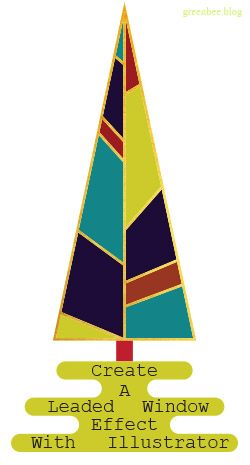
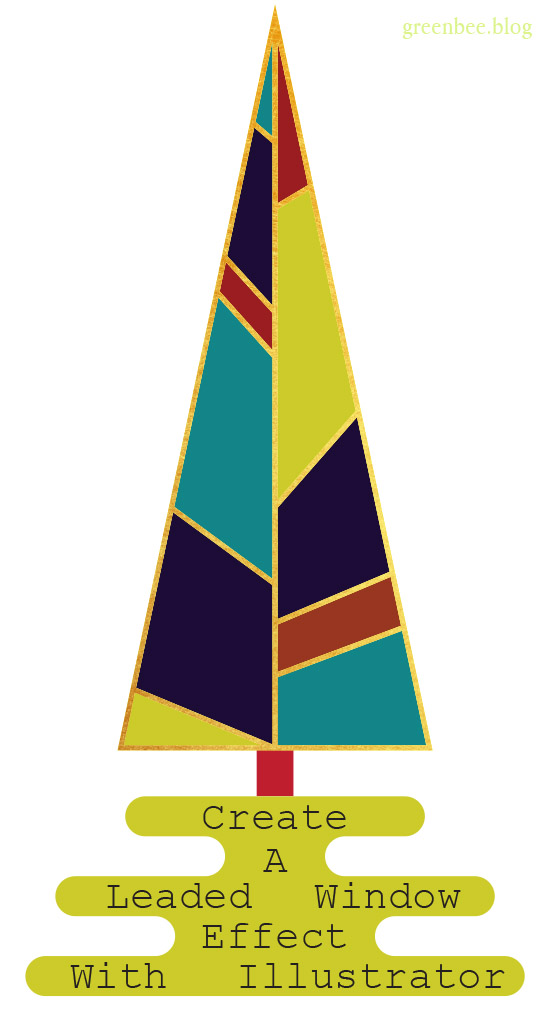
Create a Leaded Window Effect in Illustrator

The individually coloured panels are what we’ll be creating in today’s tutorial. It’s a versatile effect that can be used for lots of different applications. I used it for the leafy design below.

🙂

Here’s the tutorial for you:

xoxoxo 🙂

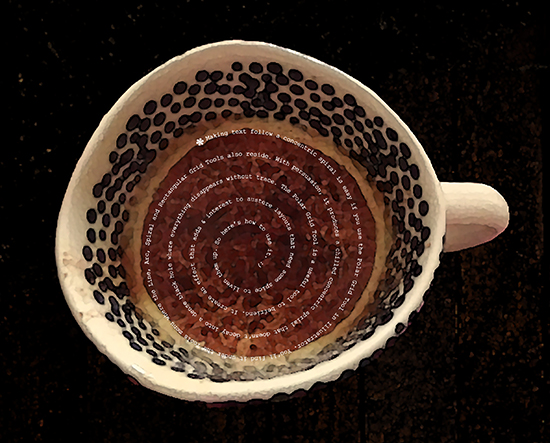
Create a Concentric Spiral Text Path in Illustrator

The Spiral Tool in Illustrator decays into an ever tighter and smaller turn and doesn’t work as a text path. It makes text increasingly illegible or clunky as it follows the spiral. This tutorial shows you how to make a concentric spiral text path.

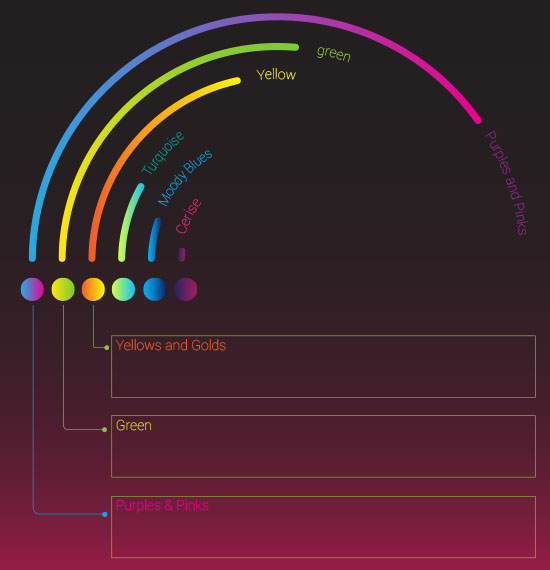
An infographic I’m working on.

I’ve used concentric circles to create the framework for the infographic above so you can see an example of how the principles can be put to practical use.

*There are other ways to create concentric paths; you could create a circle then go to Offset Path to create perfect concentric circles without a spiral.*

Download the tutorial here:

xoxoxo