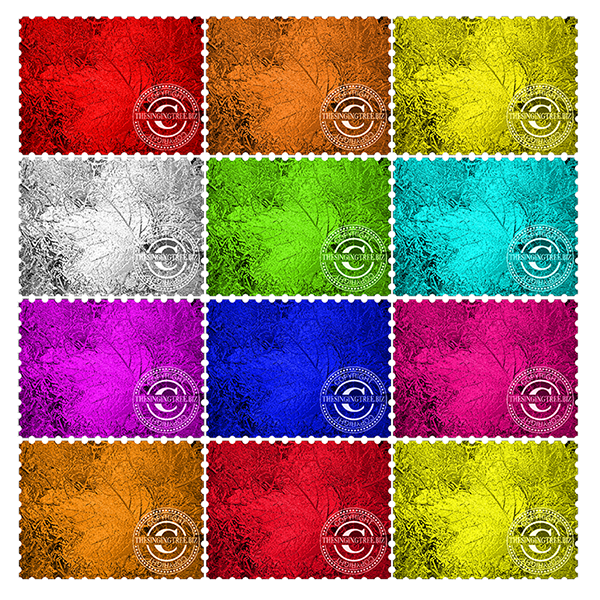
Apply a colour overlay from the Layers Styles palette
Then go to Filter>Artistic>Sketch>Chrome
You might want to Bevel & Emboss (also in the Layer Styles palette) and you might want to play with the Chrome settings but these give you the basic steps.
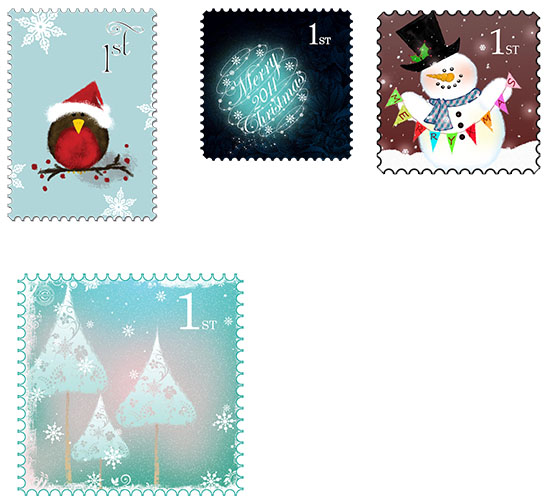
Faux Postage Stamp Effect – basic steps
Select a round brush, 100% hardness
Select the same colour as you have as your background
In the Brushes controls, set the spacing so that it will make a ‘dotted line’ (you’ll be able to see the effect of increasing the distance in the preview panel)
Create a new layer
Align the brush so that it sits midway on the top edge of your image, hold down Shift to constrain it to a straight line and paint your row of balls along one of your straight edges, let’s say top horizontal.
Copy your dotted line layer, move the dots down to sit on the bottom edge of your image.
Select both dotty layers and use Align to line the layers up on the left or right edge.
Create a new layer, use the same brush and then draw a vertical row of dots down the left edge of the image.
Copy that layer and move the dots over to the right side of the image.
Select both of those vertical dotty layers and use Align to line up the tops or bottoms.
Apply a Drop-Shadow in Layer Styles for a little more realism.







 No More Mondays