
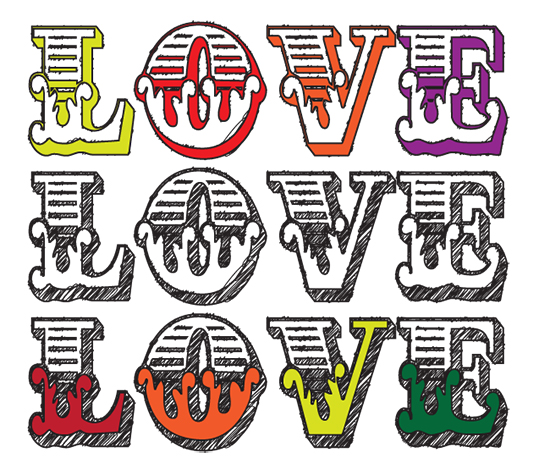
This tutorial is about how to turn a font into a hand-rendered effect font and how to fill selected elements within the font with colour or gradients.
1. Open a new document in Illustrator. The size is up to you.
2. Type in some text using any font you like. I can’t remember which font I used here – I think it may have been Circus or Cast Iron.
3. With your text selected, go to the Swatch palette and remove the fill and stroke.
4. With the text (now invisible) still selected, go to: Window>Appearance and click the little group of horizontal lines on the right to display a drop-down menu. Select Add New Fill.
5. You’ll see a small block of colour – leave the default colour black, keep it selected and go to Effect>Stylize>Scribble and apply the following settings:
- Angle: 45°
- Path Overlap: 0 px
- Variation: 2 px
- Stroke Width: 1 px
- Curviness: 0%
- Variation: 50%
- Spacing: 2 px
- Spacing Variation: 1.5 px
6. Appearance Panel> Add New Stroke and give the text a 2 px stroke.
7. With the Stroke still selected, go to Effect>Distort & Transform>Roughen and apply the settings below:
- Size: 0.5%
- Size, select the Relative check button
- Set the Detail level to 30 Points: click on the Smooth checkbox
Click OK and the scribble effect is created.
8. Select the black arrow selection tool (V) go to Type>Create Outlines
9. With the text still selected (now displaying as outlined with many nodes) go to Object>Ungroup and keep repeating this until the option to Ungroup is greyed out.
10. With the Selection Tool (V), select elements within your text and fill with any colour or gradient you like from your Swatches or Gradient palettes.
To apply the Scribble effect to other fonts without having to repeat this process, save your ‘scribble’ by opening a New Graphic Style in the Graphic Styles panel and giving it a name. To use it again, create your new text, select it and click on your *name scribble* from the Graphic Styles library.

 *** Image originally posted in my previous blog: The Singing Tree ***
 No More Mondays