Use the Width Tool in Illustrator (CS5)

* The Width Tool was a relatively new addition to Illustrator CS5 when this tutorial was originally posted on my old blog, The Singing Tree.*

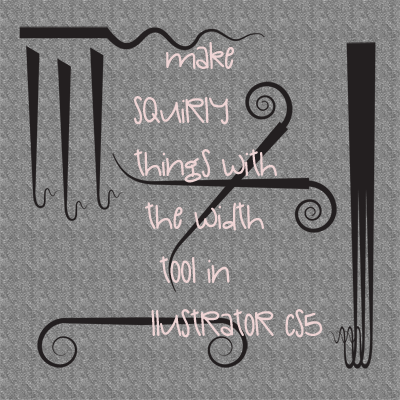
The Width Tool is easy to use and a very handy little widget. I used it to make some tapering shapes with curls on the end – see below. They look like a set of Victorian surgical accessories but they have their own charm.

They make for wonderfully squirly-shaped elements! 🙂

Easy concentric circles in Illustrator

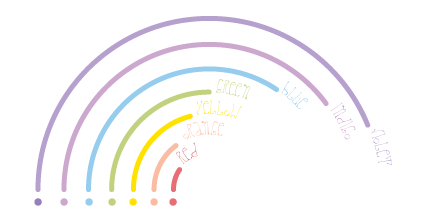
Creating concentric circles in Illustrator is super simple. You can create a circle and simply use Object Path>Offset Path to create a new one and specify the distance between the circles (for smaller, minus then the integer) than the original circle or larger. This method lets you create each circle one by one. If you want to create a bunch of them, go to Tools and select the Polar Grid Tool (it’s under the drop-down from the line segment tool). Double click to bring up the Polar Grid options and set the Concentric Dividers to the number of circles you want and take the Radial dividers down to zero. Hold down Shift as you draw to constrain them to perfect circles. If you want to use the circles as pathways for text, Ctl-A to select all and Ctl-C to copy (you’ll see why in a moment).

To change the stroke size, colour, etc, you need to Ungroup them (Shift+Ctrl+G). To chop the circles up a bit, use the Pen Add Anchor Point and click on the circles to create extra nodes; select nodes with the Direct Selection tool to cut the node using the Anchor Cut Scissor tool from the Properties Palette. Cut a node further along and  Delete to get rid of bits of your circles and leave other bits of circle segments. Change the colour, size, segment end style, etc using the Stroke options on the Properties Palette.

To add text so that it continues from the circle segments, lock your concentric segments layer, create a new layer then use the command Ctl-F to paste the circles, previously copied, in place. Under the Text tool, select the option Type on Path and type your text. Make use of the Add Nodes to cut the text path segment just after the coloured segment lines. You can also select with the Selection Tool (V) and drag the text path handles to shunt the text along.

The Polar Grid option is worth knowing about if you need to create a number of equi-distant circles quickly. And, it’s nice and easy.

Juicy Illustrator Curvy Ribbons


The curvy, organic shapes was created in Illustrator and inspired by Veerle’s blog, which, sadly, seems to have disappeared and her tutorial along with it.

See my post: https://greenbee.blog/2019/09/20/make-a-segmented-curvy-wave-in-illustrator/  on how to create a segmented curvy wave. There’s my tutorial on how to create a basic segment and the rest is pretty easy to figure out.

Illustrator Art Brush

Another great tutorial. This was something a little different and lends itself to lettering and other shapes. This is from Nobu Design and is called Illustrator Trick: Art Brush Lettering.

Once you’ve created the art brush, you can use it on any path you want.

I found that it  worked better if I broke the path on some letters so that the two ends of the brush didn’t munge together and remained distinct and separate.

🙂

Blown Away Text Effect

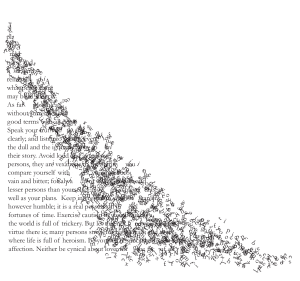
This column of text looks like its edges have been eroded away or blown off. It was all done in Illustrator. It’s made from a column or shaped text box filled with text. I made a number of Scatter brushes using individual letters. Simply type a letter or two, in the same font and font size, as the column of text then go to Type>Create Outlines. This turns text into editable shapes.

Drag the letter (now an editable shape) onto the Brushes palette. Select Scatter Brush from the options. I left the size pretty much the same but if you want your letters to look as though they have blown far away you might want them to scale smaller, etc.

I kept the scatter and spacing close to the defaults but enough to give the distribution a sufficiently random effect. I set the Rotation to allow a full 360 rotation of each letter.

Create several of these Scatter brushes with different letters.

Finally, I used the paint brush to roughly draw the outline of the main text shape on the right-hand side. Repeat and build up the letter drift as you want.

When you’re pretty much happy with the end result, select Object>Expand Appearance and then Ungroup. Each letter can now be selected if you want to pick off a few stray or unwanted scatterings.

The brushes can be saved for use in other projects and the settings can be edited anytime you want.

Letter h papercutting

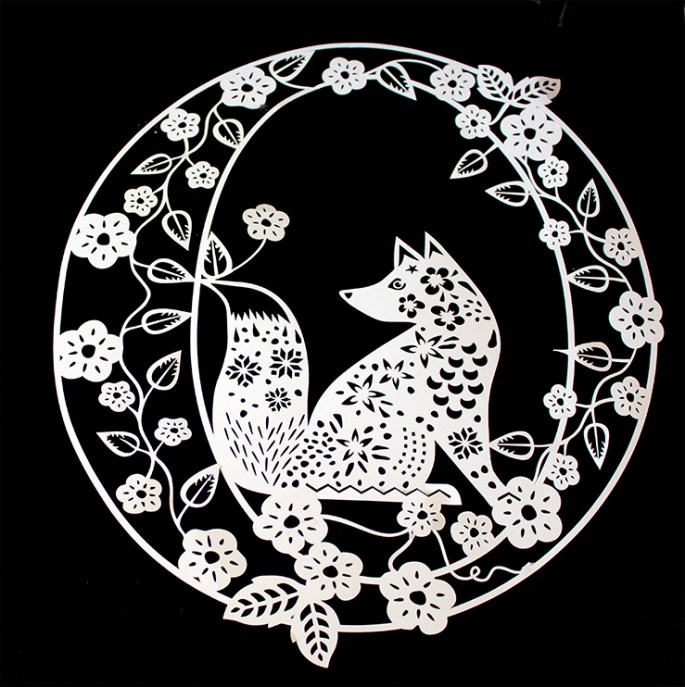
Fox PaperCut

Here’s the papercut of the design posted yesterday ready to be framed. It is quite large and will go into an A3 frame.

Today has been busy. Mr T is laying new flooring in the bedroom we keep for family and friends when they come over. He’s really cracking on and I’m totally amazeballs at how hard he’s working.  We bought some sliding wardrobe doors from Ikea and he’ll be hanging them at some point. And he’s painting everywhere. Stand still for long enough and you’ll have an Annie Sloane makeover. He looks a bit wild and wooly though – like a good thrashing with a weed whacker would tame some of the facial growth! He scrubs up well and a hot shower and shave will gussy him up to his usual level of handsomeness.

Meanwhile I’m making soup—chicken, chickpea and sweet potato. All done in the pressure cooker with a tickle of turmeric, a sprinkle of black pepper, a quiff of curry powder, stock, parsnips and lots of carrots with a tin of chickpeas thrown in at the end. We haven’t had soup for a while as the hot weather was salad and sandwich fare. Now we’d had some rain and the temperature has dropped, a bowl of soup is perfect.

spools of thread

Then time to do a bit of sewing. I need to get a wiggle on myself and get cushions made. I bought some fabric from a cloth shop in Dublin. Nice stuff but very expensive so back to Amazon, I’m afraid. I have found a super pattern on line for a cross backed apron surprisingly called a ‘Mobius’ apron! 🙂 and an origami bag that caught my eye.

I think I’ve got the easier side of this house refurb deal!

Foxy Letter O


I have a papercutting to do. The first stage is design—a rough paper drawing then drawn in iIllustrator. Tracing the design doesn’t really work too well, I’ve found.  I create the flowers and leaves and superimpose them over the design then do the painstaking Shapebuilding and / or my method (I think it’s my method as I’ve never read of the technique anywhere else), of using Pathfinder and the Direct Selection tool.

It’s not really a job I’ve got time for as we’re in the middle of some refurbishment around the house. The back room has its new floor, it’s painted, the futon has been assembled and put into place, the curtains are up… joy and happiness are on my doorstep along with the new mats. We have a bedroom to refloor and some wardrobe doors to put up. Lots and lots of painting. 😦 I really don’t like painting house things). 😦

Poor Gracie had a very nasty tail injury. She came in with it drooping, almost dragging it. It was obviously very painful as she didn’t want us to touch her lower back or tail and yowled and pawed at us to leave it. We got her to the vet where they put her under anaesthesia, X-rayed it and checked her over. Luckily, it’s not broken. The vet thinks something make have yanked it or she got it caught and yanked it herself to get free. She was kept in overnight to recover from the anaesthetic and to check that she could wee.

However, I was over the moon when the vet rang to say we could collect her – she’d had a wee (and the other), she’d twitched her tail though it was still drooping but there was no reason to believe she wouldn’t make a full recovery. Phew! Am glad to say that her tail is much more upright today but is still not the upright antenna we’re used to seeing but I’m confident she’s getting better so it’s a matter of time. Give her a few days or a week and I’m sure she’ll be back to normal.

As for the injury… hmmmm, I have suspicions that someone nearby hurt her. No proof. A certain man who came to my door after finding a dead pigeon in his garden and told me to put a F***** bell on her, put a F***** fence up (we have walls with tall hedges on three sides!!!!) and said he’d know what to do if he found her in his garden again… That was only a week ago.  It seems a little too coincidental that after making vague threats about what to do and then her suddenly coming home badly injured. I don’t think it is. I think it’s deliberate.

In Ireland, it is normal for most cats to be outdoor cats – though we keep her in every night when she comes in for her tea, that’s it, she’s in till the next day. And I truly wish she didn’t kill birds (or mice that breed in the shouty man’s F****ing compost heap) and we have tried collars and bells but she always gets them off. And, there are plenty of other cats that also catch birds. I’ve had birds left on my doorstep overnight when Gracie (and Jess) have been in all night. Jess, for the record, is not interested in catching birds. He has a core belief that every bird captured and killed round here is down to her. Ignorant P****.